Quick Answer
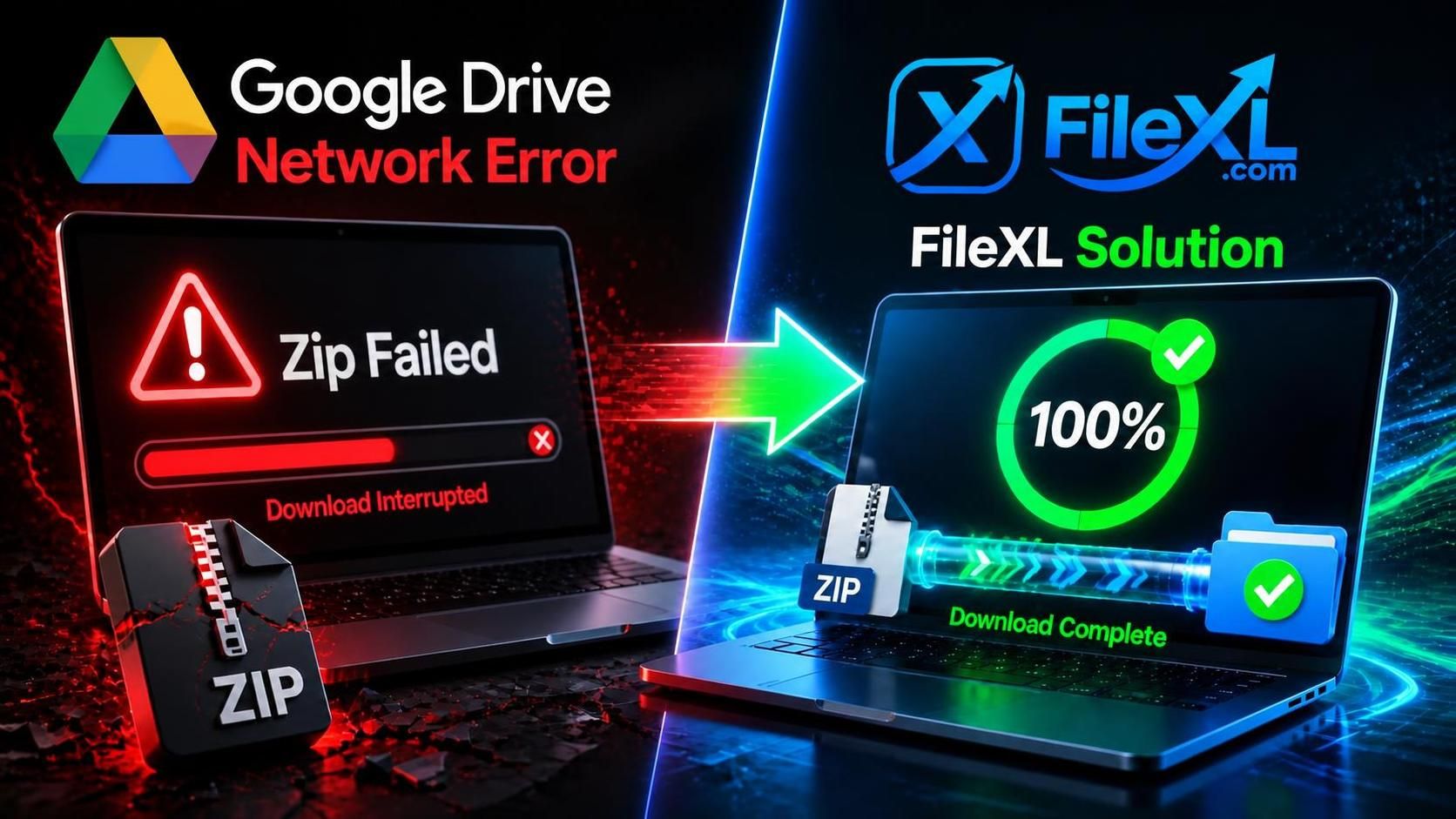
Why does Google Drive say "Network Error" or "Zip Failed"? A "Network Error" during a Google Drive download happens because the web version of Google Drive does not support resumable downloads. If your internet connection drops for even a microsecond, the entire download fails. The "Zip Failed" error occurs because Google's servers automatically time out or crash when trying to compress folders larger than 2GB or containing thousands of files. To fix this without installing the Google Drive desktop app, you can import your files to FileXL, which uses chunked, fully resumable download technology that survives internet drops and doesn't require server-side zipping.
How to Fix "Google Drive Network Error" & "Zip Failed" When Downloading Large Files
If you regularly work with video files, large datasets, or heavy design folders, you have likely experienced the ultimate frustration: waiting an hour for a massive Google Drive download, only for it to crash at 99% with a "Network Error."
Equally infuriating is trying to download a folder full of files, only to be met with the dreaded "Zip Failed" or "Zipping..." screen that spins endlessly before crashing.
Why does a tech giant like Google struggle to let you download your own files? More importantly, how can you bypass these limits right now? Let’s break down exactly why these errors happen and how you can fix them instantly.
Why Does the "Google Drive Network Error" Happen?
When you click download on a 5GB video file in Google Drive via your web browser, Google sends the file as one continuous, massive stream of data.
Here is the fatal flaw: Google Drive web does not support resumable downloads.
If your Wi-Fi blips, your router switches bands, or your cellular network drops for a single millisecond, the browser loses the connection to Google's server. Because Google hasn't chunked the data, your browser cannot ask, "Can we just pick up from 80%?" Instead, it throws a Network Error, forcing you to start from 0 bytes.
Why Do You Get the "Google Drive Zip Failed" Error?
When you select multiple files or an entire folder in Google Drive and click download, Google doesn't send the files one by one. Its servers attempt to compress them into a .zip file first.
However, Google enforces strict limits to protect its server CPU:
The 2GB Limit: If the folder is larger than 2GB, Google attempts to split it into multiple zip files, which often causes the browser to freeze or block the pop-ups.
The Timeout Limit: If compressing the files takes too long, the server simply gives up, returning the "Zip Failed" error.
The Traditional (And Slow) Fixes
If you search Google forums, you will find a few standard workarounds. While they work, they are usually highly inconvenient:
Install Google Drive for Desktop: Google's official solution is to force you to download and install their desktop syncing app. This isn't helpful if you are on a public computer, a mobile device, or just want a single file quickly.
Split the Files Manually: For the "Zip Failed" error, you can manually select smaller batches of files (under 1GB) and download them one by one. This is incredibly tedious.
Clear Browser Cache / Try Incognito: Sometimes browser extensions block the download stream. This occasionally fixes the issue, but it won't save you from a dropped internet connection.
The Ultimate Fix: Use FileXL for Resumable Large File Transfers
If you cannot afford to have a download fail, you shouldn't be relying on standard HTTP web streams. You need a platform built specifically for heavy payload delivery.
This is where FileXL comes in. FileXL is a dedicated large file transfer service designed to succeed where standard cloud drives fail.

How FileXL Solves the Problem:
True Resumable Downloads: FileXL transfers files using "chunking" and a localized
StreamSaverscript. If your internet dies at 99%, FileXL pauses. When your connection returns, it resumes exactly from 99%. You never have to restart a massive download.No 2GB Zip Limits: FileXL handles files up to 10GB per transfer for free users.
No Account Wall: You don't have to force your clients or students to install an app or create an account just to download the file you sent them.
Step-by-Step: How to Bypass the Error Instantly
If you are stuck trying to share a massive file that keeps failing on Google Drive, here is how to guarantee delivery:
Step 1: Go to FileXL.com. Step 2: Drag and drop your heavy file (up to 10GB for registered free users, or 5GB for guests) into the secure uploader. Step 3: Generate your secure link. Step 4: Send the FileXL link to your recipient.
When they click download, FileXL's resilient transfer engine takes over, ensuring the file arrives byte-for-byte, no matter how unstable their internet connection is.
Bonus: If they are on a mobile device, they can forward the FileXL link via WhatsApp without downloading the file to their phone's local storage, saving massive amounts of space.
Conclusion
Google Drive is a fantastic tool for creating documents and collaborating on spreadsheets. But when it comes to delivering heavy, multi-gigabyte media files over the web, its architecture falls short.
The next time you face a Google Drive network error downloading large files, don't waste hours restarting the download. Move your heavy payloads to FileXL and experience what a professional, resumable file transfer actually feels like.
Start your free 10GB transfer on FileXL today.
Frequently Asked Questions (FAQ)
Can I resume a failed Google Drive download? No. If you are using Google Drive in a web browser (Chrome, Safari, Edge), downloads are not resumable. If it fails, you must restart from the beginning. To get resumable downloads, you must use the Google Drive Desktop app, or use a dedicated transfer service like FileXL.
Why does Google Drive keep saying "Zipping..." and then failing? Google's servers impose strict time and size limits on file compression. If your folder exceeds 2GB or contains thousands of small files, the server will time out and fail to create the zip.
Is there a file size limit for downloading from Google Drive? While Google Drive allows you to store up to 5TB files, downloading files larger than a few gigabytes through a web browser is highly unstable and prone to network timeout errors.